Selecting columns for an export
How to choose which columns are included in each Scheduled Data Export feed



This article shows you how to pick which columns each Scheduled Data Export feed delivers. By the end, you'll have a custom column selection saved for each feed, and your next export will reflect it.
Choose a feed
- Open app.revenuecat.com and select your project.
- In the Integrations side panel, open your Scheduled Data Exports integration.
- Select the feed you want to configure — Transactions or In-App Currency.
Each feed has its own column catalog and output file. Configure them independently; enabling or disabling a feed is separate from choosing its columns.
Open the column catalog
- With a feed selected, scroll to the Export columns section. This is the column catalog for that feed.
The catalog lists every available column for the selected feed, grouped by category, with the columns currently in your selection marked as checked.
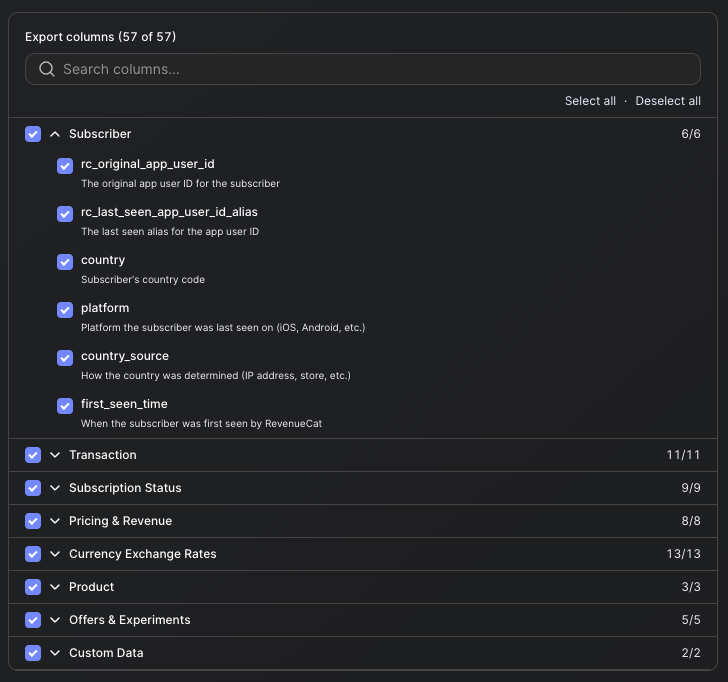
A new integration starts with a sensible default selection for each feed. You can save without changing anything, or expand the selection before saving — both work.
Toggle columns and save
- Check the box next to any column you want to add, or uncheck a column you want to remove.
- Click Save changes at the bottom of the page.
Your selection applies to future exports only for that feed — RevenueCat doesn't rewrite past deliveries. The first export generated after you save will include the new column set; until then, in-flight deliveries continue to use the previous selection.
Repeat these steps for each feed you have enabled.
Changing the selection later
You can revisit the column catalog and adjust the selection for any feed at any time. The new selection takes effect on the next scheduled export for that feed. If your downstream pipeline depends on a specific column being present, make sure the pipeline is updated before you remove that column from the selection.
For the full list of available columns, see Available feeds.
Migrated integrations may export unlisted columns
If your integration was migrated from an older export template, your Transactions deliveries can include columns that no longer appear in the catalog. These columns were replaced in a newer catalog version and are kept to preserve a stable output shape, but they're hidden from the catalog so they can't be added to new selections.
This is why the "X of Y" count in the Export columns section can be lower than the number of columns in your delivered file. For example, an integration may still export experiment_id and experiment_variant (replaced by enrolled_experiments_by_layer), even though they don't appear in the catalog.
Checking or unchecking individual columns preserves any hidden columns in your export. Select all and Deselect all, however, rebuild your selection from the visible catalog only, permanently removing the hidden columns from future deliveries. To restore a removed hidden column, contact RevenueCat Support via the dashboard Contact Us form.