App Store Connect API Key Configuration



You may upload an App Store Connect API key for RevenueCat to import products and prices from App Store Connect.
1. Create an App Store Connect API key
On App Store Connect, create a new App Store Connect API key under Users and Access → Integrations → App Store Connect API:
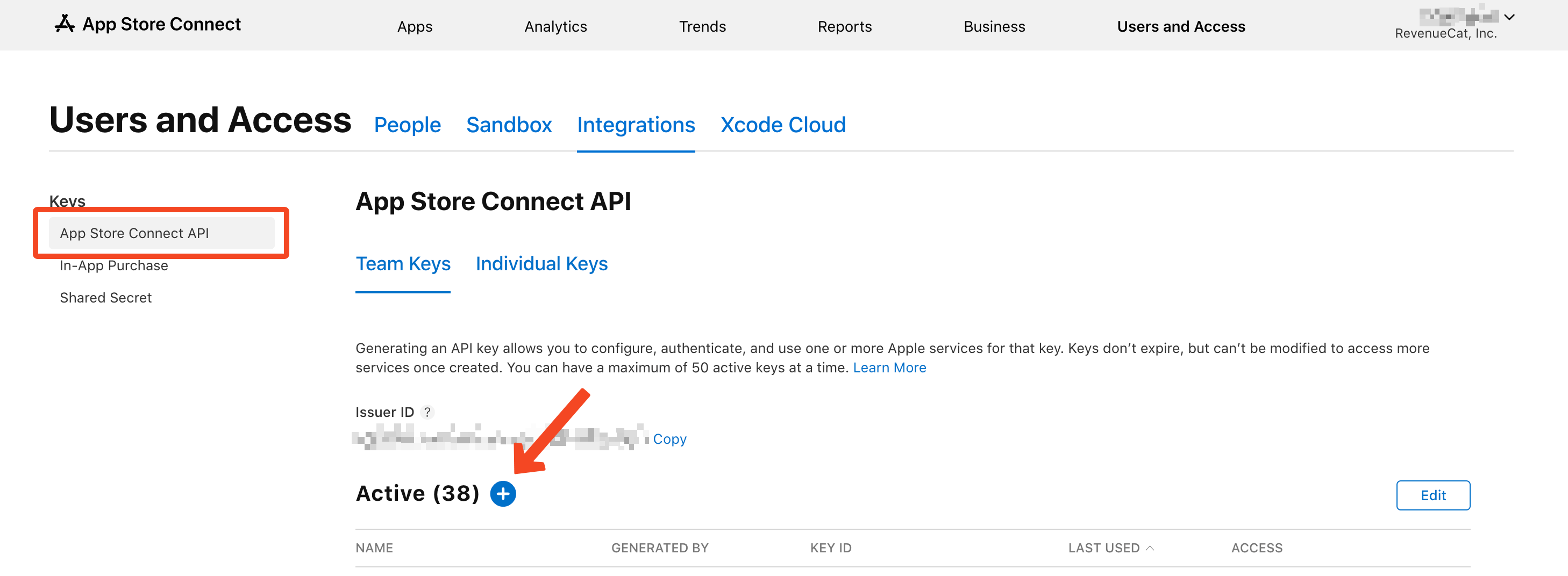
The newly created key needs to have at least the access level App Manager:

Download the generated key. You will receive a .p8 key file. Also take note of the Issuer ID (shown above the "Active" table).
This key can only be downloaded once, so make sure you store it in a safe location.
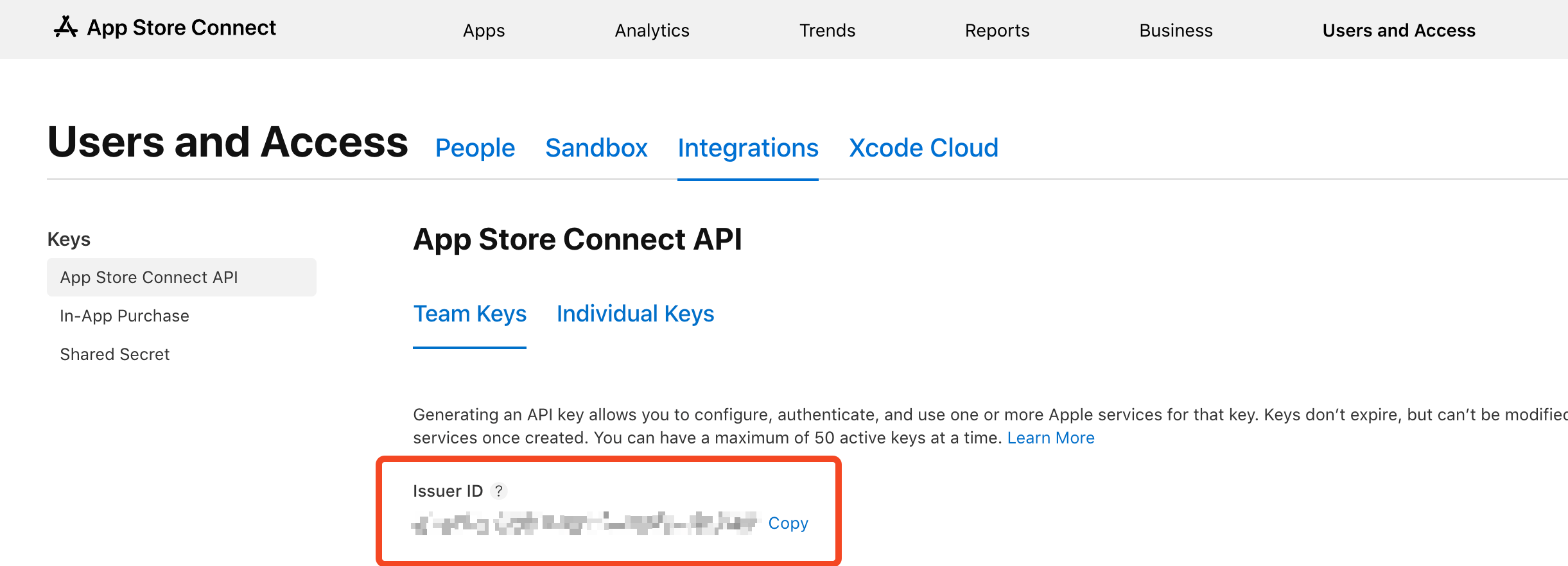
2. Upload the App Store Connect API key to RevenueCat
Once everything is set up in App Store Connect, you need to upload the App Store Connect API key from the previous step to RevenueCat.
In the RevenueCat dashboard, select your iOS app from Apps in the project navigation.
Within your app settings, under the tab App Store Connect API, you'll see an area to upload your App Store Connect .p8 file that you downloaded from App Store Connect.
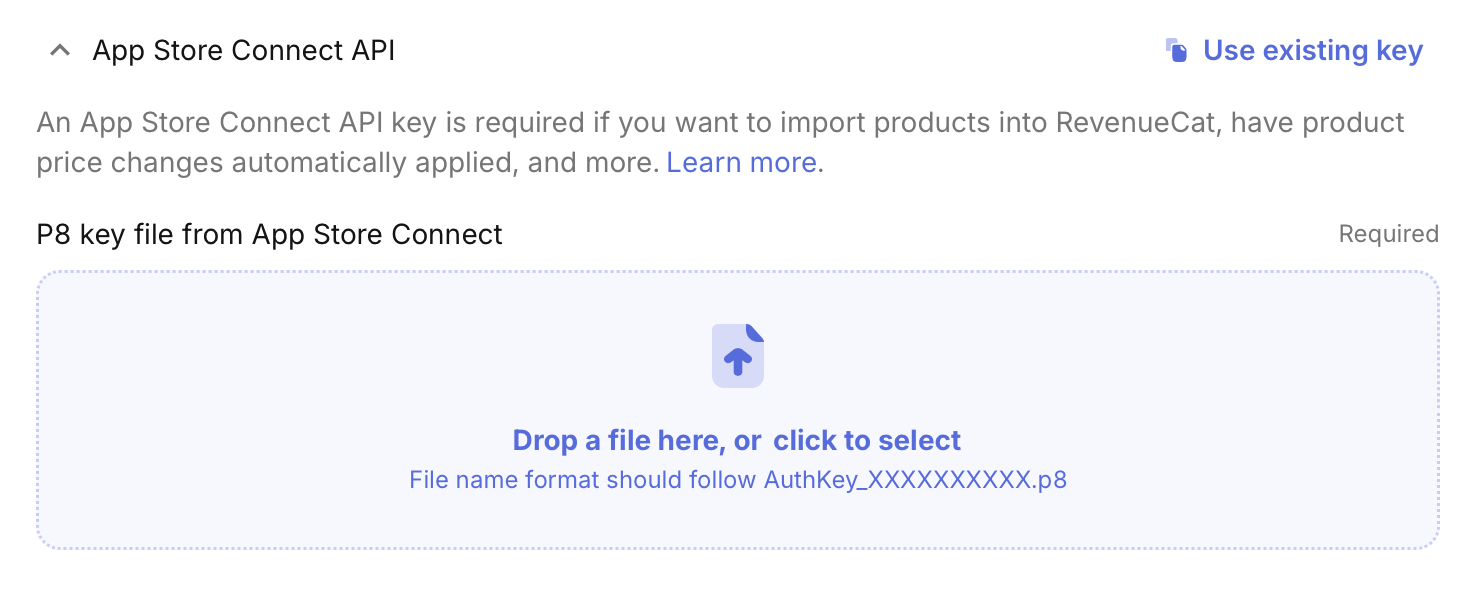
After uploading the App Store Connect API .p8 file, you will be prompted to input the Issuer ID you saved in Step 1.
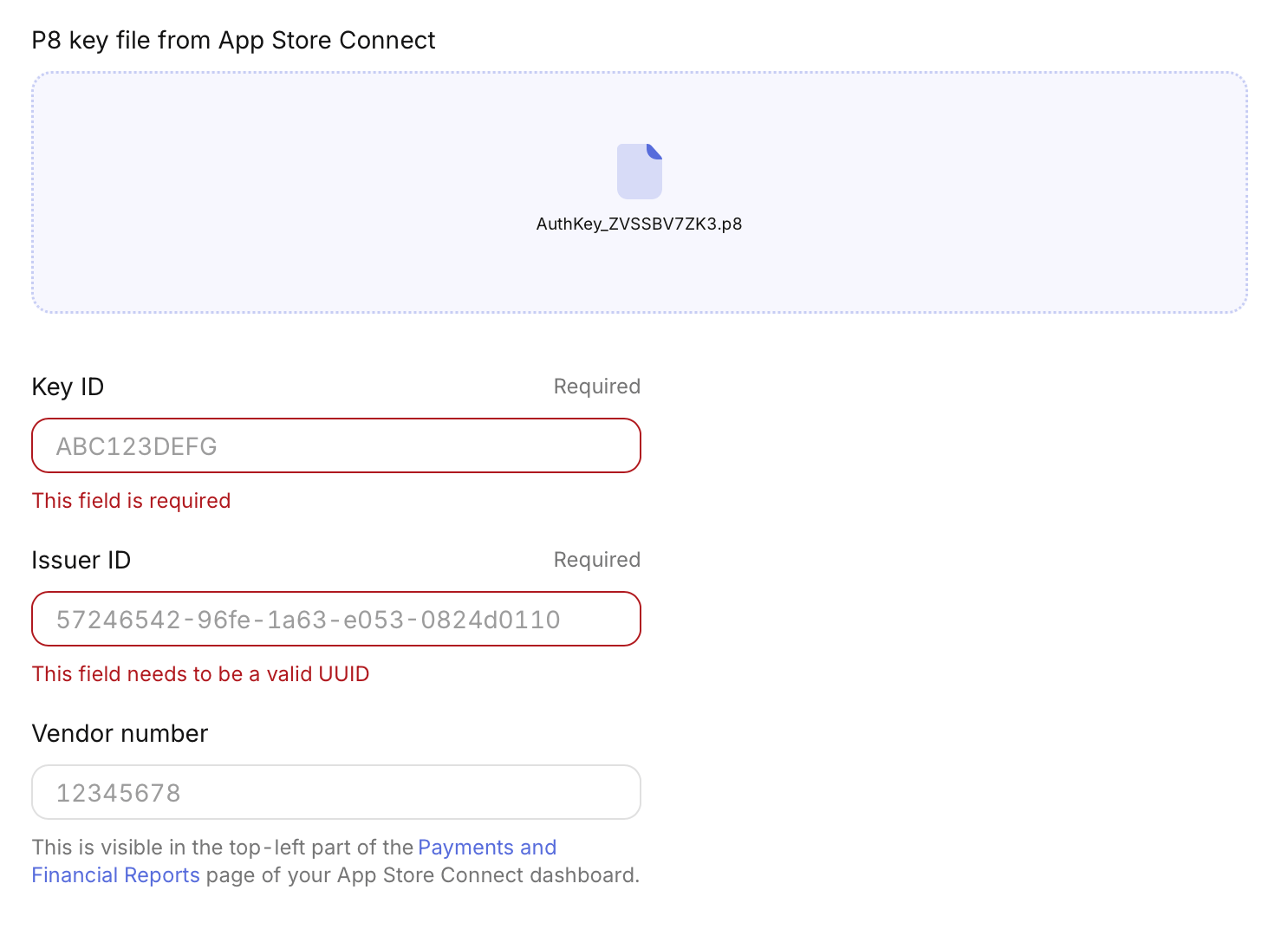
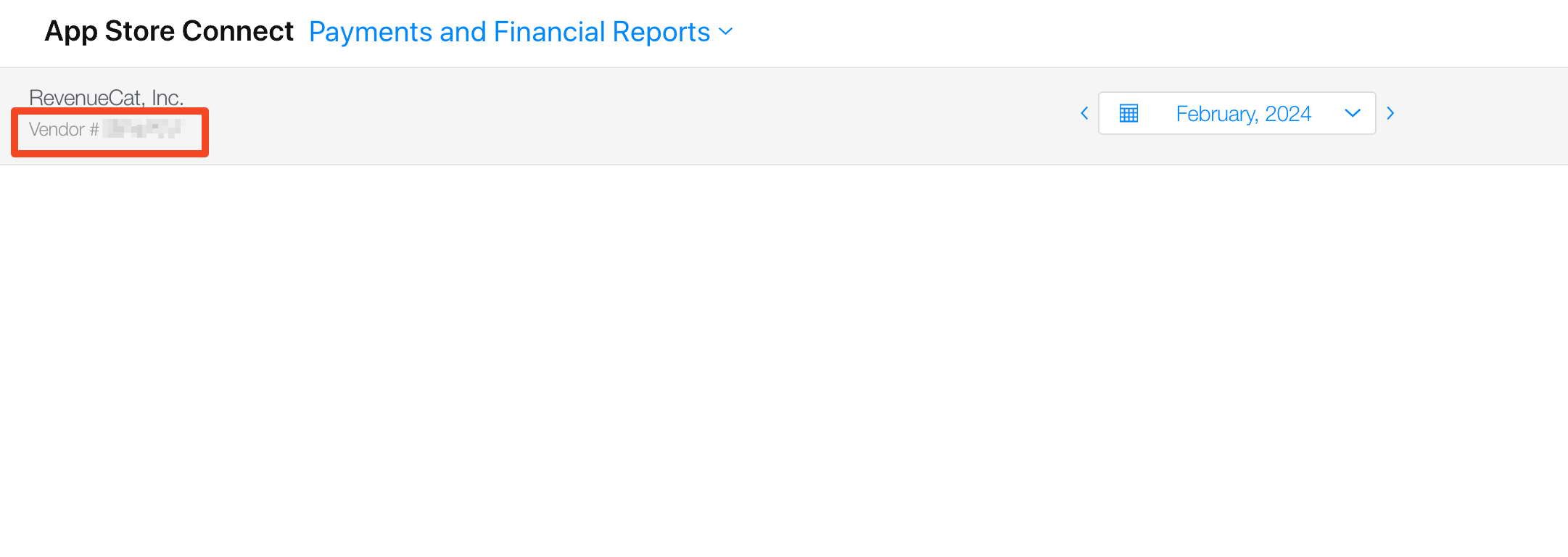
You will also be prompted to input the Vendor number. This can be found in App Store Connect under Payments and Financial Reports, in the top left corner of the page.
Remember to select 'Save Changes' in the RevenueCat Dashboard.
Why do I see an "Invalid file name" error when uploading my key?
The upload accepts only Apple's original file name: AuthKey_XXXXXXXXXX.p8, where XXXXXXXXXX is the Key ID. RevenueCat reads the Key ID from the file name, so the upload rejects any file with a different name.
Common causes:
- The browser saved the key as a text file. Phone browsers in particular can save the download as
.txt. Some operating systems hide the extension, so a file namedAuthKey_XXXXXXXXXX.p8.txtcan display asAuthKey_XXXXXXXXXX.p8. Show file extensions, rename the file back toAuthKey_XXXXXXXXXX.p8, and upload it again. - The browser renamed a repeat download. Downloading to the same folder twice can produce
AuthKey_XXXXXXXXXX (1).p8. Remove the suffix, or upload the original download. - The file is an In-App Purchase key. That key is named
SubscriptionKey_XXXXXXXXXX.p8and belongs in the In-App Purchase Key field, not here.
The file name must match exactly, including capitalization. If your copy no longer has the original name, rename it to match the Key ID shown in App Store Connect, or create a new key and download it with a desktop browser.