Expiring Currencies



Expiring currencies are portions of a customer's balance that are removed after a period of time. They're ideal for creating urgency, running seasonal campaigns, and encouraging timely engagement. They can also support business logic where unused currencies don’t roll over, similar to a reset.
RevenueCat provides a built-in expiration functionality for in-app currencies. You can configure this directly in the dashboard and RevenueCat will automatically handle currency expiration without requiring a custom backend implementation.
Once configured, RevenueCat automatically handles currency expiration:
- Automatic Tracking: RevenueCat tracks when each currency grant was made and calculates expiration times
- Scheduled Processing: Expired currency is automatically removed from customer balances
- Audit Trail: All expiration events are logged in the customer history
In-App Currency granted via one time purchases cannot be expired, as that would go against the App Store rules. According to Apple’s guidelines in section 3.1.1:
Any credits or in-game currencies purchased via in-app purchase may not expire, and you should make sure you have a restore mechanism for any restorable in-app purchases.
Configuration
-
Navigate to In-app currencies: Go to your project's "Product catalog" → "In-app currencies" section in the RevenueCat dashboard.
-
Create or edit currency: Either create a new in-app currency or edit an existing one.
-
Configure expiration: In the currency settings, you'll find an "Auto-expire at the end of billing cycle" toggle where you can enable the granted currency to expire at the end of the billing period.
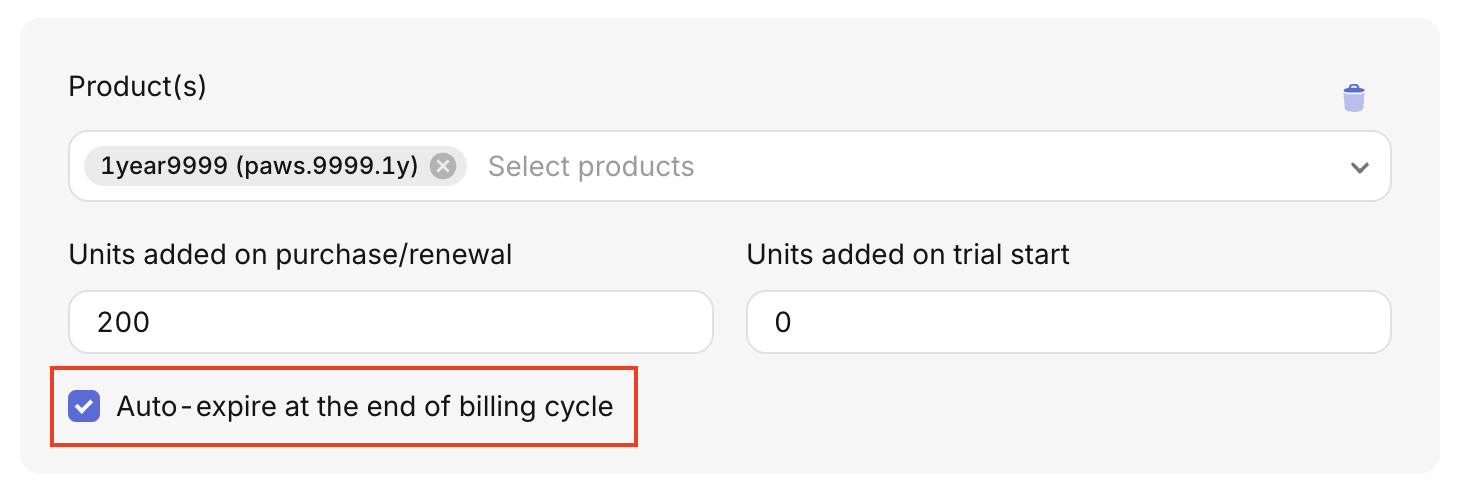
Expiration is currently linked to a product’s billing period and can only be configured in the following ways:
- Trials: Currency expires when the trial period ends
- Normal billing periods: Currency expires when the subscription billing cycle ends
If the toggle is enabled, it applies to both trials and normal billing periods.
- Save configuration: Select "Save" to apply the expiration rule.
Customer History
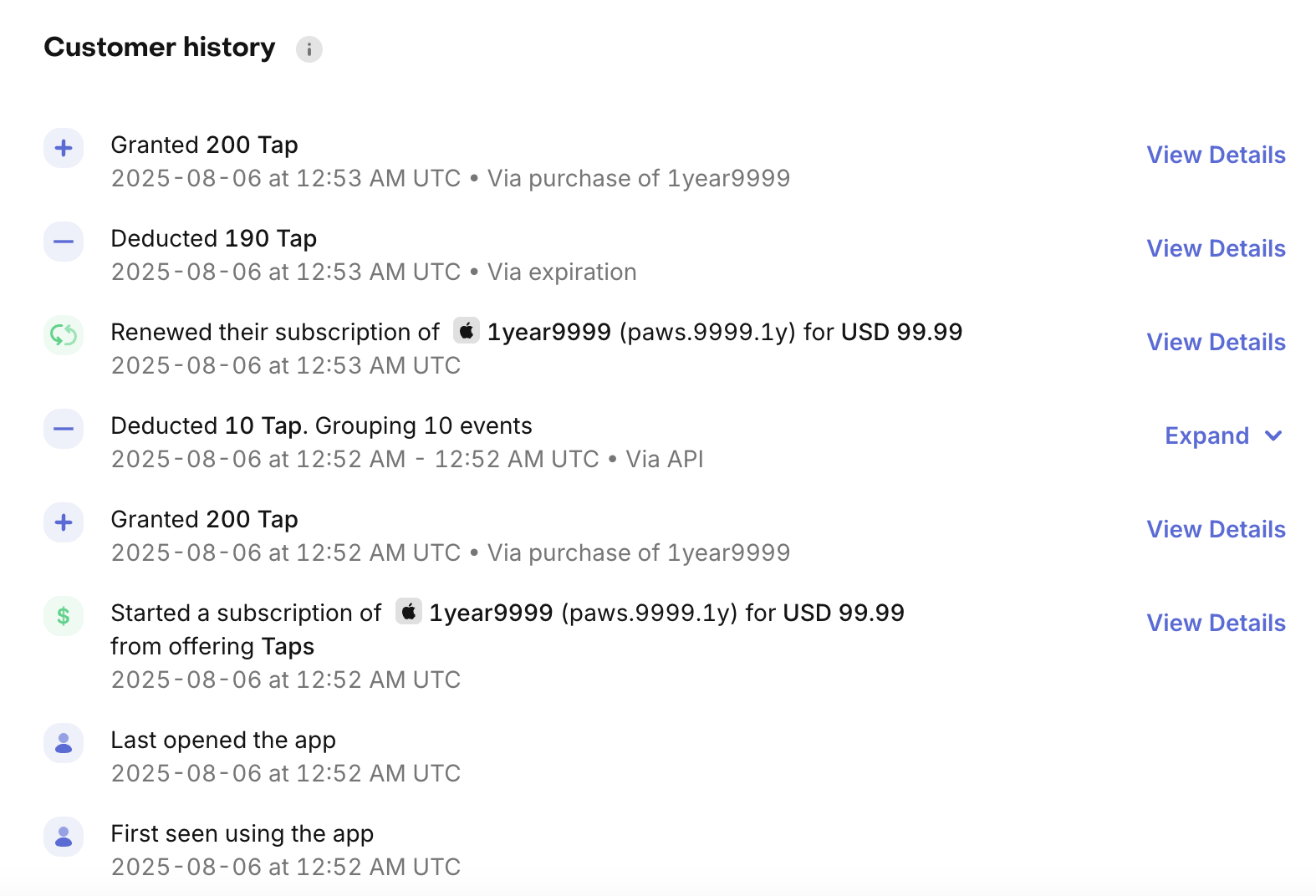
All expiration events appear in the customer timeline so you can:
- See exactly when currency expired
- Track how much currency was deducted by the expiration
- Understand expiration in relation to other activities
How Currency is Deducted
When customers spend in-app currency, RevenueCat automatically prioritizes expiring currency to ensure the best customer experience and minimize waste.
Deduction Order
RevenueCat uses the following priority order when deducting in-app currency:
- Expiring currency first: All currency with scheduled expiration dates is deducted before any non-expiring currency. Currency with no scheduled expiration is only deducted after all expiring currency is consumed.
- Soonest expiring first: Among expiring currencies, RevenueCat deducts in chronological order by expiration date (oldest/soonest first)
This approach ensures customers maximize the use of time-limited currency and minimizes the amount of currency that expires unused.
Example: Mixed Currency Spending
Consider a scenario where a customer has:
- 1,000 credits from a subscription (expires at end of billing cycle on March 31)
- 500 credits from a consumable purchase (never expires)
- Total balance: 1,500 credits
If the customer spends 750 credits:
- ✅ 750 deducted from subscription credits (expiring March 31)
- ✅ Remaining balance: 250 subscription credits + 500 consumable credits = 750 total
- ❌ NOT: 500 from consumables + 250 from subscription
At the end of the billing cycle (March 31):
- The remaining 250 subscription credits expire
- Customer retains: 500 consumable credits
This customer-friendly approach means your users will always use their expiring currency first, reducing confusion about "lost" currency and creating a better experience.
Implementation
This deduction priority is automatic - you don't need to configure anything or modify your spend API calls. RevenueCat handles the deduction logic internally when you call the in-app currency transactions endpoint.
Product Change Behavior
When customers change their subscription products (upgrades, downgrades, or crossgrades), the behavior of expiring currencies depends on the platform and the specific proration mode used. RevenueCat automatically handles these transitions to ensure currency expiration remains consistent with billing changes.
Consider a product change from subscription A to subscription B, where both products grant in-app currency (and at least A has expiring currency). Refer to the platform-specific tables below for detailed product change behavior.
Google Play Store
Google supports both client-side and server-side proration modes that affect how expiring currencies behave during product changes.
Client-Side Proration (SDK)
When using the SDK to handle product changes, the following replacement modes determine expiring currency behavior:
| Replacement mode | Expected behavior if A expires |
|---|---|
WITH_TIME_PRORATION | • Immediately expire A • Grant a prorated amount of B |
CHARGE_PRORATED_PRICE | • Immediately expire A • Grant a prorated amount of B |
CHARGE_FULL_PRICE | • Immediately expire A • Grant a full amount of B |
WITHOUT_PRORATION | • Immediately expire A • Grant a full amount of B |
DEFERRED | • At the end of the billing cycle: Expire A • Grant a full amount of B |
WITH_TIME_PRORATION and WITHOUT_PRORATION behave differently when using expiring currencies compared to non-expiring currencies:
- Without expiring currencies: New currency grants are deferred until the customer is actually charged for the new subscription
- With expiring currencies: Currency is granted immediately when the product change takes effect, even before the customer is charged
This difference exists because expiring all old currency without granting any new currency would not be a great customer experience. However, this means customers receive currency before being charged, which may not align with your business logic.
Recommendation: If you're using expiring currencies, we recommend using CHARGE_FULL_PRICE or CHARGE_PRORATED_PRICE replacement modes instead, as these ensure customers are charged before receiving new currency grants.
Server-Side Proration (Play Console)
For base plan or offer changes configured in the Play Console:
| Change type | Expected behavior if A expires |
|---|---|
| Charge at next billing cycle | Same as "DEFERRED" |
| Charge immediately | Same as "CHARGE_FULL_PRICE" |
Apple App Store
Apple handles product changes differently based on the type of change:
| Product change | Expected behavior if A expires |
|---|---|
| Upgrade | • Immediately expire A • Grant full amount of B |
| Downgrade | • Expire A at the end of the billing cycle • Grant full amount of B at renewal |
| Crossgrade same duration | • Same as upgrade: Immediately expire A • Grant full amount of B |
| Crossgrade different duration | • Same as downgrade: Expire A at the end of the billing cycle • Grant full amount of B at renewal |
Crossgrades of the same duration can create unexpected behavior when using expiring currencies. Apple refunds a portion of the old subscription and charges the full price for the new subscription, which can lead to unintended currency grant patterns.
Recommendation: Avoid using crossgrades of the same duration if you have expiring currencies enabled. Crossgrades of different durations are safe to use, as are regular upgrades and downgrades.
Stripe
Stripe supports various proration modes combined with billing cycle resets:
| Proration | Billing cycle reset | Expected behavior if A expires |
|---|---|---|
| No proration | Yes | • Immediately expire A • Grant full amount of B |
| No proration | No | • Expire A at the end of the billing cycle • Grant full amount of B at renewal |
| Immediate proration | Yes | • Immediately expire A • Grant full amount of B |
| Immediate proration | No | • Immediately expire A • Grant prorated amount of B |
| Proration in next billing cycle | Yes | • Immediately expire A • Grant full amount of B |
| Proration in next billing cycle | No | • Expire A at the end of the billing cycle • Grant prorated amount of B at renewal |
Considerations
- Immediate Changes: When a product change occurs immediately, any existing expiring currency from the old product (A) is immediately expired, and new currency from the new product (B) is granted based on the proration mode
- Deferred Changes: When changes are deferred to the next billing cycle, the old currency (A) continues to follow its original expiration schedule until the change takes effect
- Platform Differences: Each platform handles these scenarios slightly differently, so it's important to test your specific use cases
For more detailed information about product changes and in-app currency grants, see the In-App Currency Subscriptions documentation.
Best Practices
Clear Communication
Always let customers know when their currency will expire by providing clear expiration dates and times. Communicate this information early and often, and reinforce it with multiple reminders leading up to the expiration to ensure customers have every opportunity to use their balance. Additionally, consider informing the customer when the currency has expired so they know when their currency has expired.